
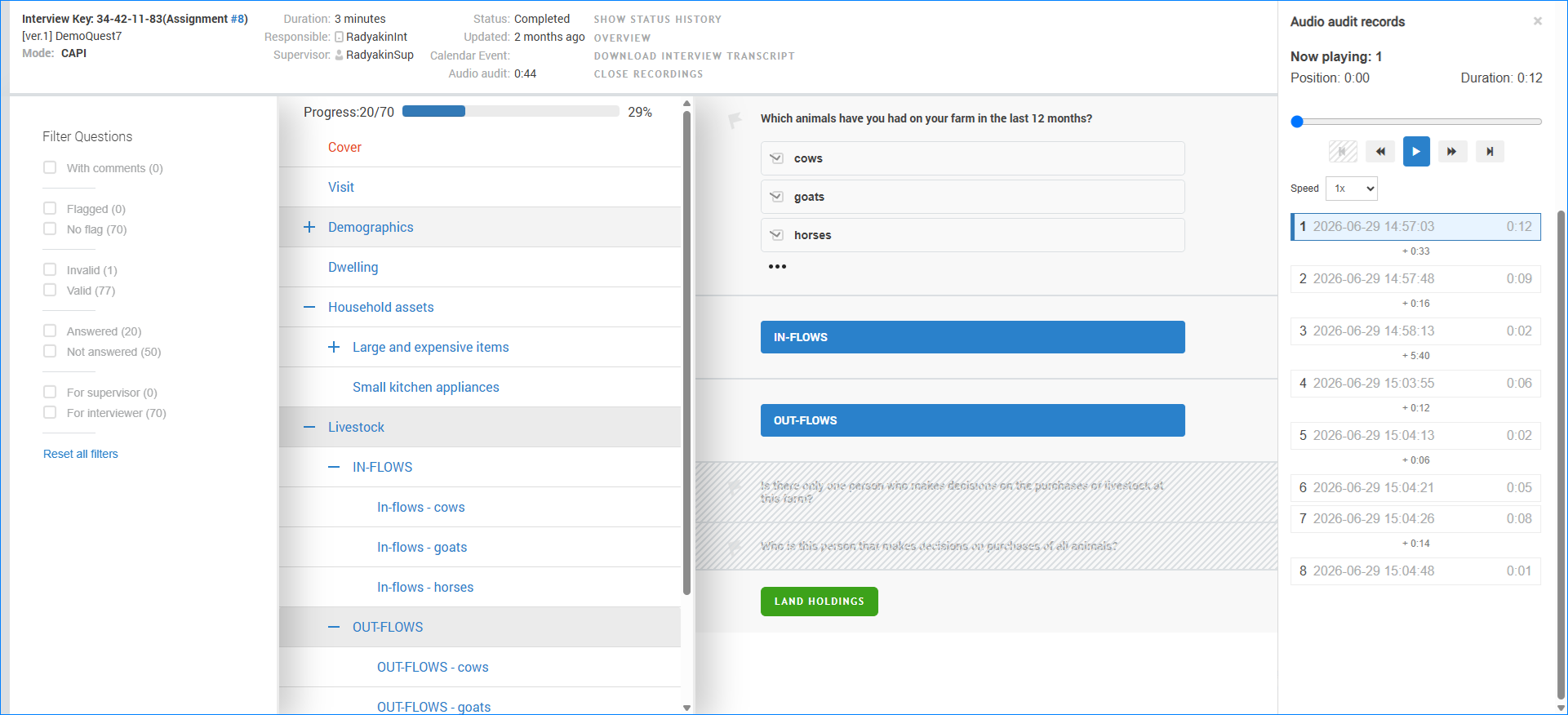
Survey Solutions includes a built-in audio player that allows authorized users to listen to audio audit recordings directly while reviewing an interview. The player is integrated into the interview view and enables reviewers to examine questionnaire answers and audio audit recordings side by side without downloading files.
Overview
When audio audit is enabled for a questionnaire and recordings have been collected during an interview, authorized users can open an audio audit panel and play the recordings directly in the browser.
The integrated player is intended for quality control, supervision, and data verification activities. It allows reviewers to navigate through individual audio audit recordings, control playback speed, and continue working with the interview while recordings are playing.
Playback is read-only; recordings cannot be modified or edited from the player.
Access to audio audit recordings should always comply with applicable privacy, consent, and data protection requirements.
Who Can Access Audio Audit Recordings?
Audio audit recordings can be reviewed by users in the following roles:
Administrator- can access all audio audit data at any time;Headquarters- can access all audio audit data in a permitted workspace;Supervisor- can access audio audit data for interviews under their review and only if permitted by administrators.
Access to audio audit recordings by supervisors is controlled at the workspace level. Users in the role administrator can enable or disable audio audit playback for all supervisors in a workspace through the workspace settings.
Even when supervisor playback is enabled, supervisors can access audio audit recordings only while they have access to the corresponding interview. For example, once an interview is approved and is no longer available to the supervisor, the supervisor can no longer review its audio audit recordings.
Opening and Closing the Audio Player
If an interview contains audio audit recordings, a VIEW RECORDINGS link
appears in the interview header.
The VIEW RECORDINGS link is shown only when audio audit recordings are
actually available for the interview.
To open the player:
- Open an interview.
- Click
VIEW RECORDINGS.
The audio audit panel opens on the right side of the screen.
To close the panel, either:
- Click the
Xbutton in the upper-right corner of the panel, or - Click
CLOSE RECORDINGSin the interview header.
Audio Player Interface
The audio audit panel displays all recordings collected for the interview along with playback controls.
Recording List
Each recording entry includes:
- Recording sequence number
- Recording timestamp
- Recording duration
The currently selected recording is highlighted in the list.
Between recordings, the player shows time gaps indicating how much time elapsed between one recording and the next. This can help reviewers understand the timing of events during the interview.
For example:
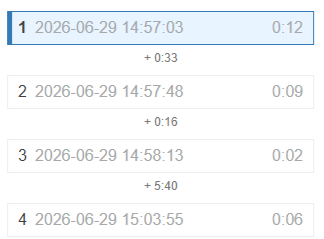
Here 33 seconds elapsed between the end of the first recording and the start of the second recording, and 5 minutes and 40 seconds between the third and the fourth ones.
Playback Controls
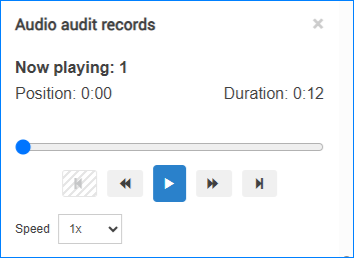
The player provides controls for:
- Play and pause
- Move to the previous recording
- Move to the next recording
- Fast-forward and rewind within a recording
- Seek to a specific position using the progress bar
- Playback Speed
Playback speed can be adjusted using the Speed selector. It may help reviewers
process long interviews more efficiently.
Playing Recordings
To start playback, double-click any recording.
The player automatically advances to the next recording when the current recording finishes. This allows reviewers to listen through all available recordings without manually selecting each one. Playback continues until the final recording has been played. After the last recording finishes, playback stops automatically.
To jump directly to any recording in the list, double-click the desired recording.
Reviewing an Interview During Playback
The audio player remains available while the interview is being reviewed.
During playback, users can continue to:
- Navigate between interview sections
- Expand and collapse groups
- Scroll through questionnaire content
- Review answers and comments
- Examine validation messages and flags
- Answer supervisor questions, etc.
Playback continues while the reviewer interacts with the interview, allowing audio audit recordings and questionnaire data to be reviewed simultaneously. Playback stops if the player panel is closed.
Typical Use Cases
Quality Control: Review interview techniques and verify that interview procedures were followed correctly.
Data Verification: Compare recorded conversations with questionnaire responses to investigate unusual, inconsistent, or suspicious data.
Supervisor Support: Listen to interview excerpts when providing guidance and feedback to interviewers.
Interview Review: Examine audio audit recordings alongside comments, flags, and validation messages without leaving the interview review screen.
More information
To learn how to activate audio audit for CAPI interviews see audio audit.
For details on the quality settings for audio files see format of audio files.